
Introduction

Last update :
Toolbox / Tips
-
Download the Postman collection
-
Download the YAML / See full technical documentation
-
Don’t forget to check the authentication documentation
The Offer Integration XML API allows sellers to submit offers in bulk via a downloadable ZIP package containing structured XML files (specifically Offers.xml). This legacy mechanism is inherited from the former SOAP API ecosystem and is still available for compatibility and migration purposes.
This flow is particularly suited to:
-
Mass-updating stock and pricing offers
-
Using pre-validated XML structures
-
Supporting seller-side tools already generating XML ZIPs (e.g., for Cdiscount)
Workflow Summary
-
Product matching
First, sellers must ensure the products they want to submit offers for already exist. If not, product creation must occur prior to offer submission. -
Prepare ZIP package
The package must follow a strict file and folder structure:-
Content/folder containing the main file:Offers.xml -
_rels/and[Content_Types].xml(ZIP metadata) must be present -
There are two types of packages:
-
Check out the complete required fields list for offers packages
-
-
Write the
Offers.xml
This file contains all the offer data (product EAN, stock, price, VAT, delivery info…). Specific fields are required depending on the sales channel (Cdiscount or Octopia). -
Host and submit
The final ZIP package must be made publicly available via a URL (e.g., S3, HTTP), and this URL is submitted via the API. -
Track status
Once submitted, apackageIdis returned. This can be used to query integration logs, track errors, and review which offers were successfully integrated.
Supported Package Types
-
Cdiscount
-
Supports both “Full” and “Light” packages
-
Sales channel ID is optional
-
Supports optional commercial data (e.g.,
PriceMustBeAligned, sales pricing) -
PurgeAndReplaceis allowed
-
-
Octopia
-
Only “Full” packages are accepted
-
SalesChannelIdis mandatory -
PurgeAndReplaceis ignored if included -
Must include
PublicationPool SalesChannelId="SELLZZ"(Download an example of a “Sales Channel” package here)
-
Seller Workflow
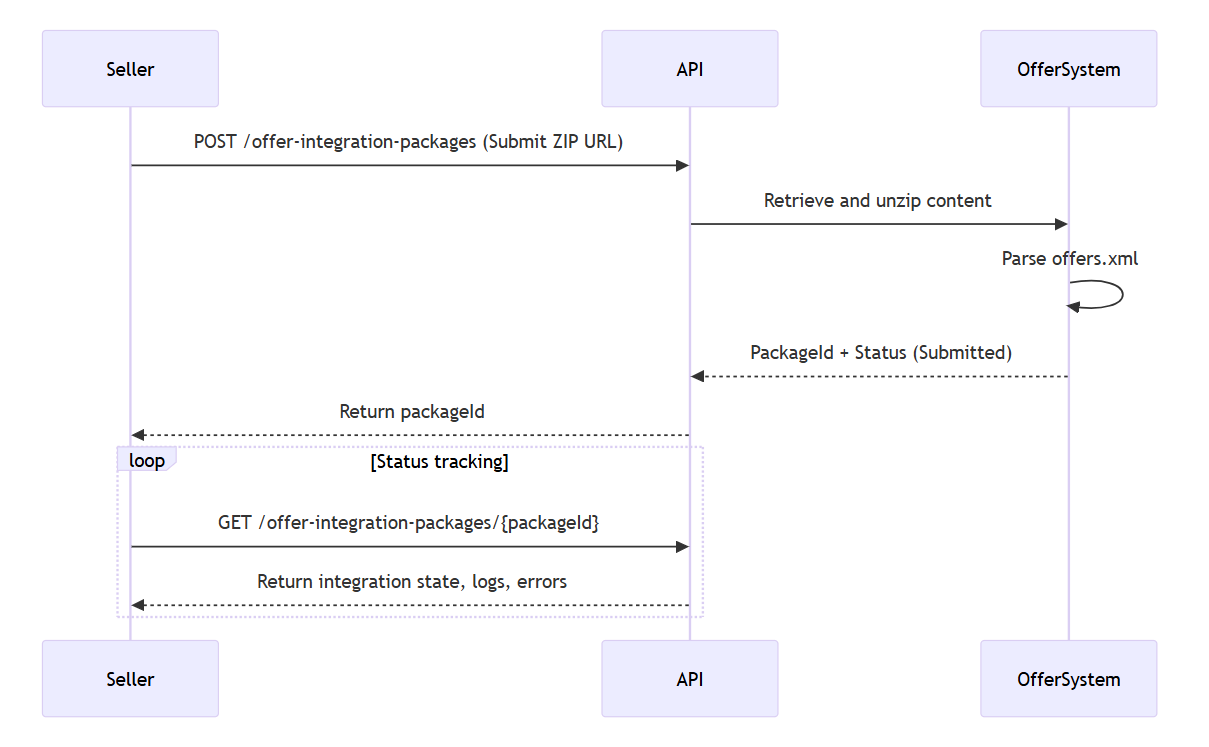
In this section we will look at how to manage the following cases and ensure maximum control of your orders:
Submit an Offer Package via XML ZIP
Prerequisites
-
Products must already exist in the system, identified by
ProductEan. -
Your XML package must follow the required structure and naming rules (see below).
-
The ZIP file must be publicly hosted (via HTTPS or similar).
-
If you are targeting Octopia channels,
SalesChannelIdis mandatory.
This endpoint allows sellers to submit a ZIP package containing structured offer data (Offers.xml) to the API. The ZIP must follow a specific internal structure and must be accessible via a public link.
This is commonly used for:
-
Mass offer updates (price, stock, preparation time)
-
Initial offer creation across channels
-
Legacy system compatibility (migrating from SOAP flows)
Download sample package here:
-
Stock & Price: containing only stock and/or price information
-
Sales Channel : including SalesChannelId=”SELLZZ”
Required Fields in Offers
-
SellerProductId,ProductEan,ProductCondition,Price,VAT,Stock,Comment,DeliveryMode,PreparationTime,ShippingCharges,AdditionalShippingCharges -
Check out the complete required fields list for offers packages
ZIP Structure Required
Package_SalesChannels.zip
├── [Content_Types].xml
├── _rels/
│   └── .rels
└── Content/
    └── Offers.xml
Good to know
-
Use the Octopia XML Package Tester to validate the correct structure of your package
See also: complete XML fields details which contains
-
overall Offers.xml file xml structure with fields and attributes
-
sample usecases
Targeted sales channel
Submit offers on a specific sales channel requires the SalesChannelIdin the package.
If missing, the default sales channel will be Cdiscount.
Body example:
< OfferPackage.OfferPublicationList >
	< OfferPublicationList Capacity="1" >
	   < PublicationPool SalesChannelId="{salesChannelId}" >
	< /OfferPublicationList >
< /OfferPackage.OfferPublicationList >
Find the list of sales channel id here
Endpoint to use
-
Request body example:
"https://domain.tld/path/to/file.zip"
Important notes
-
If the ZIP is malformed, or files are missing, the API will return a 400 or reject silently. Always validate the structure.
-
Use a fresh URL per submission, especially if you overwrite files on a hosting service (e.g. S3).
-
eventually append a unique identifier in the url (guid/query string timestamp/…)
-
Add a Commercial Operation
Prerequisites
-
Your product must already exist and be eligible for offer updates.
-
You must be targeting the official French sales periods (January–February or June–July).
-
The package must be a valid ZIP with the required XML structure and sales attributes.
This use case shows how to embed a sales price or comparison price into the Offers.xml when uploading offers via ZIP.
There are two types of commercial display:
-
Sales (Soldes): Activated only during legal sale periods
-
Comparison Price (StrikedPrice): Shown as a permanent crossed-out price
Sales
To activate a sales price visible during official sale periods:
// to be added with other offer information:
< Offer.PriceAndDiscountList >
  < DiscountComponentList Capacity="1" >
     < DiscountComponent
          DiscountUnit="1"
          DiscountValue="30"
          SalesReferencePrice="19.95"
          Type="3"
          EndDate="2019-01-05T00:01"
          StartDate="2019-02-05T00:00" >
  < /DiscountComponentList >
< /Offer.PriceAndDiscountList >
Explanation of Sales Attributes
-
Type = 3: Activates commercial operation (sale) -
DiscountUnit = 1: Percentage discount -
SalesReferencePrice: Original price used to compute the discount -
DiscountValue: Discount to apply, in % -
Price: Current sale price (will be ignored during sale display — system recalculates using formula)
Calculation logic:
Displayed Sale Price = SalesReferencePrice × ((100 - DiscountValue) / 100)
-
The sale will be shown if the discount is at least 1%, or 1€ if the original price is under 100€
-
Example:
SalesReferencePrice = 110andDiscountValue = 20→ Sale price displayed:88€
Comparison Price (Striked Price)
To display a stricked price outside official sales periods:
< Offer

    SellerProductId="32427220"
    ProductEan="0080605625006"
    ProductCondition="6"
    Price="19.95"
    EcoPart="0.10"
    DeaTax="3.14"
    Vat="20"
    Stock="10"
    StrikedPrice="39.95"
    Comment="Offre avec tous les modes de livraisons possibles"
    PreparationTime="1" >

    < Offer.ShippingInformationList >
        < ShippingInformationList Capacity="3"
            ShippingInformation
                AdditionalShippingCharges="0.95"
                DeliveryMode="Standard"
                ShippingCharges="1.0">
        < /ShippingInformationList >
    < /Offer.ShippingInformationList >

< /Offer >
Important Notes:
-
StrikedPriceis not validated by Cdiscount — it’s your declared recommended retail price. -
Must be strictly higher than current
Price. -
It appears only outside sales periods, in contexts like:
-
Flash Sales
-
Commercial operations
-
Product pages showing a crossed-out “reference price”
-
Check the Status of a Submitted Package
Prerequisites
-
A
packageIdmust be known and already returned by a successful POST. -
Package processing can take several minutes; you may need to poll the status.
This endpoint allows you to monitor the result of a submitted offer package. It returns:
-
Whether the package is still being processed or completed
-
Integration status for each offer (success, error, warnings)
-
Messages and logs that may help diagnose issues
This use case is essential to detect:
-
Offers that failed due to invalid product identifiers
-
Validation issues (e.g. bad VAT, negative stock)
-
Misuse of fields like
PurgeAndReplace,DeliveryMode, or sales pricing rules
Endpoint to use
Important notes
-
Packages are processed asynchronously: wait a few seconds before the first poll, then check every 30–60 seconds.
-
The response contains both summary status and detailed per-offer results, making it suitable for full reconciliation.
-
If some offers failed, they must be corrected in your XML and re-submitted as a new package (you cannot patch inside a ZIP).