
If you want to use the APIs via an aggregator or plugin, you will need credentials to identify yourself or to provide an integration partner with access to your account data.
There are several ways to manage the connection.
Choosing your connection method
There is no restriction to any single connection method on your account, multiple connexions can be made to a single account.
A. Using a feed aggregator
Agregators can provide different connection methods.
See Connecting with a feed aggregator below.
B. Working with an integrator or technical third party
Integrators are plugin providers for various self hosted or owned software.
You rely on a technical provider either as a direct contracted third party, or a provider from whom you bought or downloaded a piece of software integrated on your website or sales management software solution.
Such integration requires a clientId, a clientSecret, and your sellerId.
Those can be obtained through the procedure below under Retrieving Credentials.
C. Developping yourself
You are building or upgrading in-house your own software solution and connectivity to the Octopia Network APIs
You will need the following:
-
a working set of credentials, see Retrieving Credentials
-
the api reference: this website, or as provided below as a postman collection
-
the steps referenced here to Generate a token, and making your First API Call
Do not forget to check Best Practices.
D. You are an integrator or feed aggregator
We provide specific services to seller integration partners.
Feel free to browse the API reference and functional documentation.
Connecting with a feed aggregator
When connecting to Octopia through an aggregator or plugin provided by an aggregator, you will need credentials to identify yourself.
Depending on what your partner requests, there are several ways of managing the connection.
It is either achieved through access delegation or direct credential sharing.
You can manage the connection with the API Credentials Management page,
more specifically :
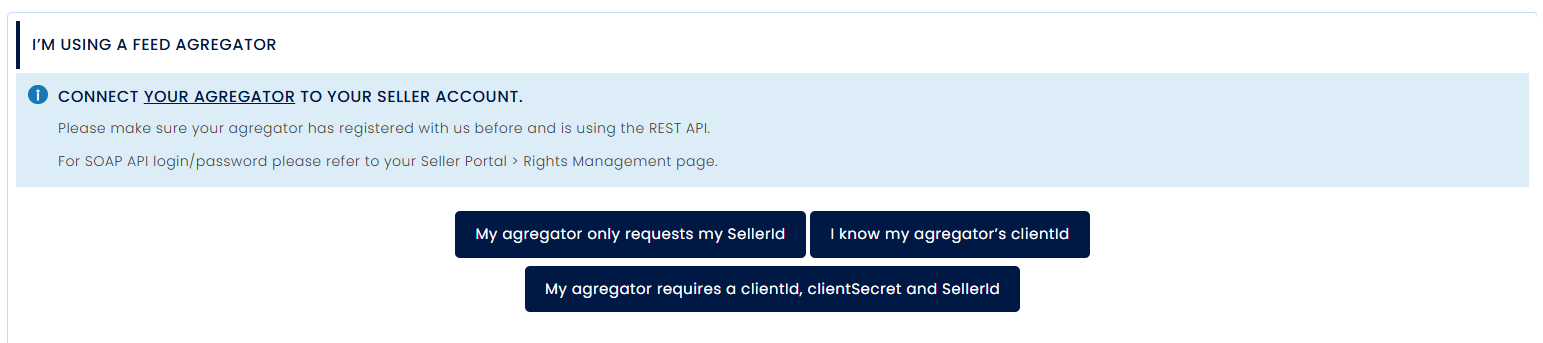
Sample screenshot from the credentials management page
-
Connect my Agregator to my account (Agregator selector)
-
Connect my Agregator’s clientId to my account (agregator provided clientId)
-
Get dedicated credentials (create a clientId)
The steps below are not required in this specific usecase.
Retrieving credentials
You only need to retrieve credentials:
-
when
clientIdandclientSecretare requested by an integration partner -
or if you build the integration yourself
You can manage the connection witht the API Credentials Management page. (Create my clientId and clientSecret)

Credentials page screenshot
You will then have:
-
a
clientId -
a
clientSecret -
confirmation of your
sellerId
Your clientId will then grant access to all your seller account data.
Do not forget to complete the process with your authentication as a seller to ensure connectivity.
API Reference collection
For easier testing, you can use the provided API Collection below.
This collection uses Postman
You can now import the collection in order to have our functionalities and the token generation request samples.
Import the collection in postman
Download the collection : Download here
Then import it from the following screen in postman.
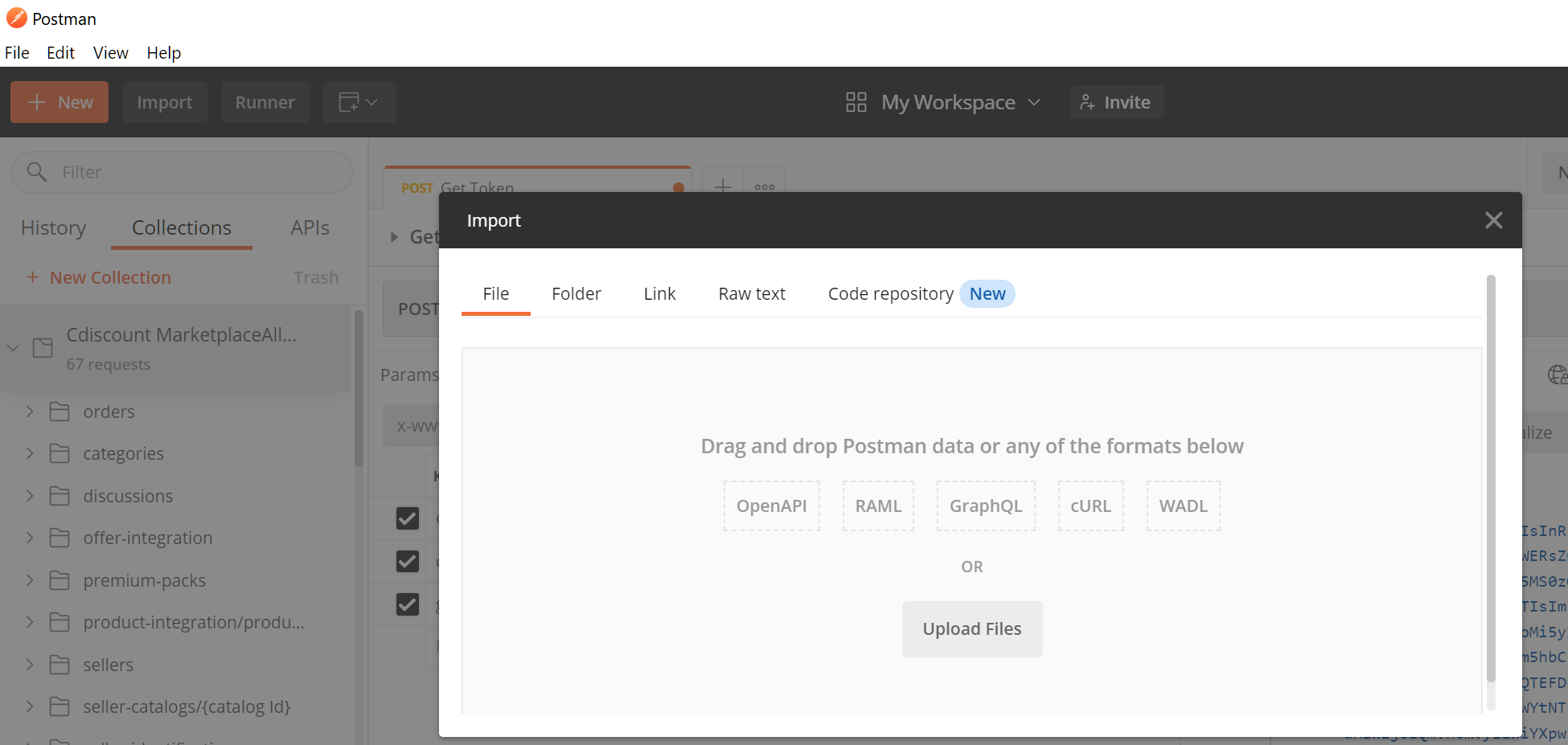
Postman import page screenshot
Open the imported collection and enter your login information as clientId and clientSecret
Generate a token
You can use the Get Token API example from the collection with sample payload body.
With your clientId and clientSecret in the call body, along with grant_type set as client_credentials
Using the following endpoint:
See also Authentication details
Make the call.
Your token is the string provided in the access_token property of the authentication API response body.
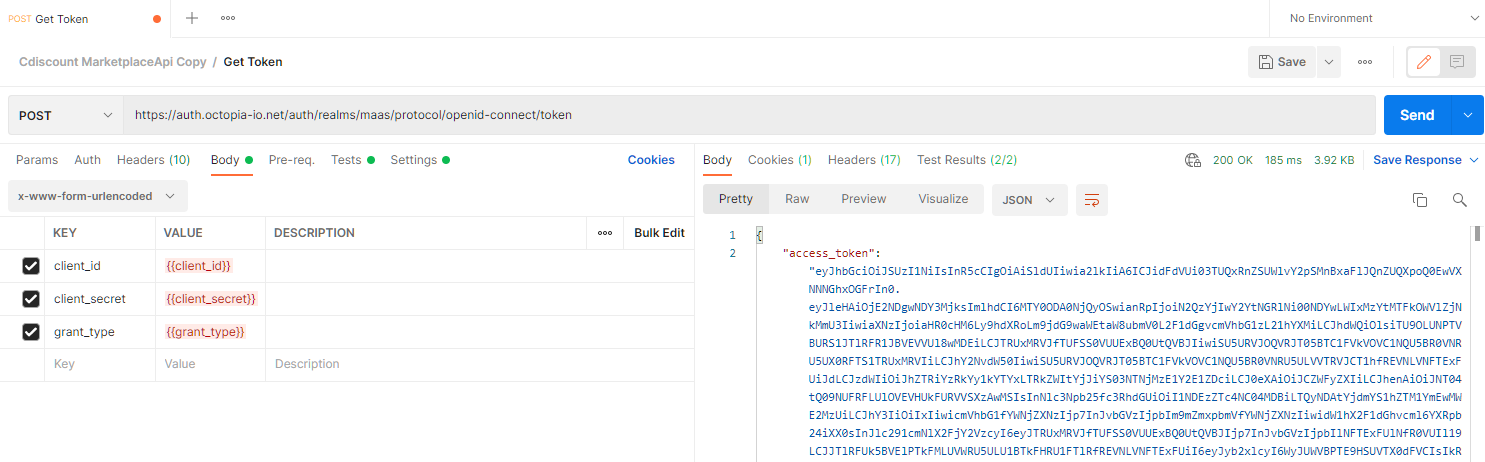
Postman authentication call screenshot
-
Any generated token is valid for a defined amount of time.
-
Tokens expire after 2 hours, at which point you need to generate a new one.
-
You do not need a new token for every api call.
-
It is advised to generate a new token before the current one expires.
Oauth 2.0 configuration within postman
In postman choose authentication Oauth2 and insert your token
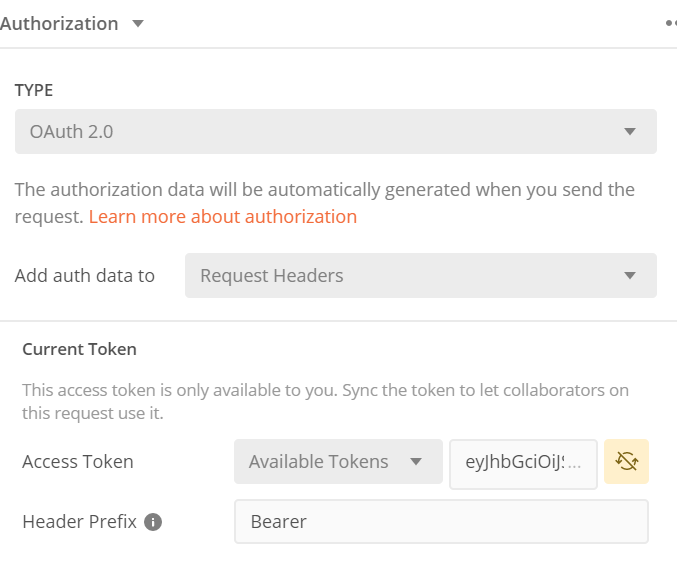
Postman authentication configuration screenshot
First API Call
-
From the technical documentation, you can use the “Try It” calls to test run the API.
-
If you encounter an SSL error you must disable SSL controls in the request settings.
You now know how to get a token, from the collection or the api reference, pick the method you want to call.
All required parameters are listed in the technical documentation, most are available in the call examples within the collection.
To make it simple you can take a GET call without any parameters
like Seller Info > Get Seller Informations, see Retrieve seller profile.
You might not need to implement all available methods, start by following your work process, and for each step, look for the corresponding API.
About API Keys
Octopia does not provide long term tokens or an API Key.
Authentication is based on Oauth2 which requires client credentials to retrieve a short lived token.
API Calls require both the Bearer token and the target account sellerId for successful operation.
Seller account has to be linked to the authenticated client. This is handled through credentials management.
Best practices and common principles
Similar endpoints share common rules (quota/principles/recommandations).
Those are listed in the associated documentation under the Best Practices menu item.