
Orders Management
- Home
- Orders Management
Introduction

Last update :
Toolbox / Tips
-
Download the Postman collection
-
Download the YAML / See full technical documentation
-
Don’t forget to check the authentication documentation
This documentation describes how to manage your orders on Cdiscount and the various Octopia sales channels. It details the different endpoints available and their use, to enable developers to integrate these functions efficiently.
Global overiew of order management.
As an Octopia seller, I’m responsible for collecting and processing orders received through the various channels. To do this, a set of endpoints are available to collect the necessary data and act on your customers’ orders. In this section, we’ll look at the different use cases you can use to manage your orders.
Order Lifecycle :
Upon receiving a new order, Octopia Order Management proceeds to a set of controls to ensure the order is valid. This includes for instance enriching the order with the appropriate data such as the logistic supply mode and commission fees, or controlling the stock and offer status. If and only if all controls are valid will the order be made available to you.
The order will then move through the different states below, according to the actions you perform and the order’s supply mode:
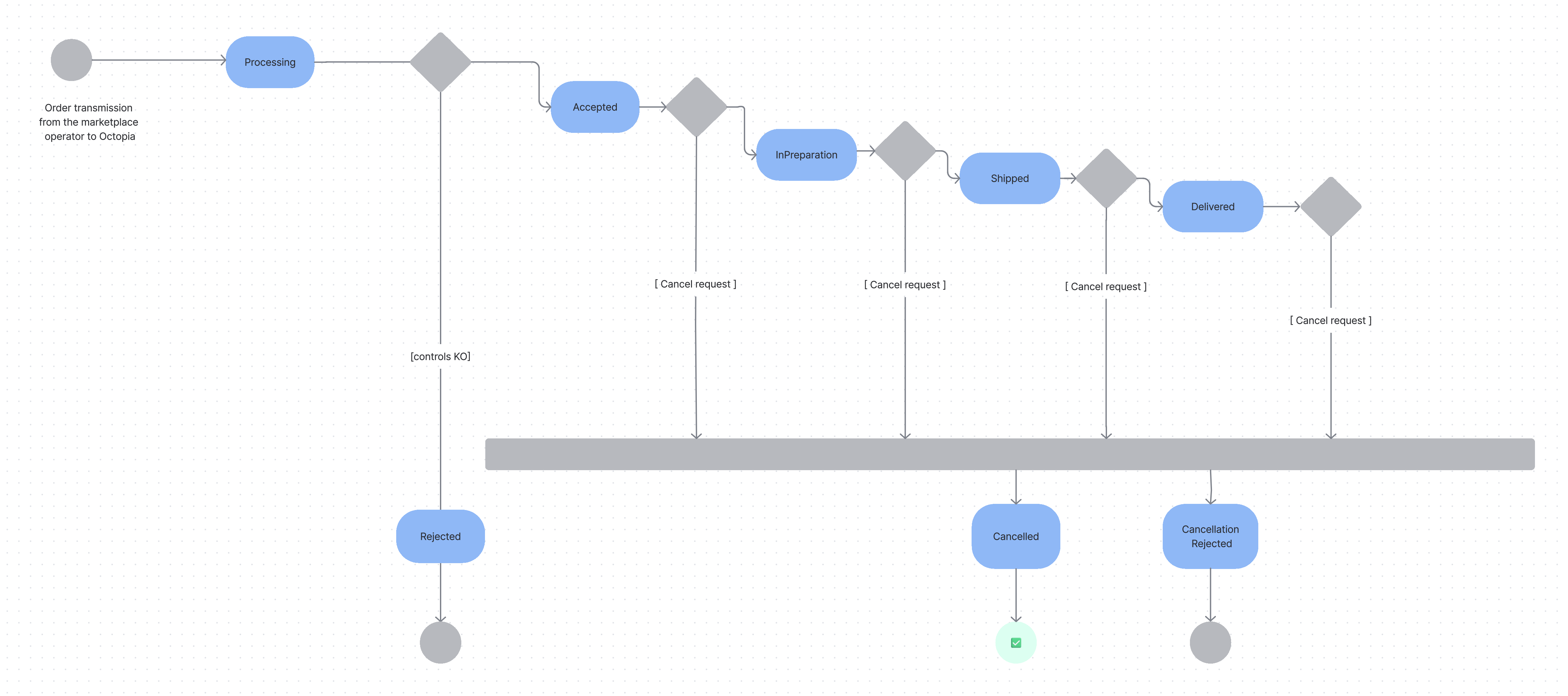
Each order state has the following meaning:
-
Processing: incoming order in the system, indicates that the order is still under review and not yet ready for further processing.
-
WaitingAcceptance: if you chose to validate yourself your orders, you will first have to validate or refuse to fulfill the order (only on Cdiscount)
-
Refused: Order has been refused (by the seller)
-
Accepted: Order is awaiting final marketplace controls.
-
InPreparation: This status means the order is ready to be shipped by the seller if the supply mode is “Seller”, or is being prepared by the warehouse if the supply mode is “Fulfillment” or “Xdock”.
-
Shipped: indicates the order has been collected by the carrier and is on its way to your customer
-
Delivered: order has been delivered to the end customer (not available on all shipping carriers)
-
Cancelled: an order may be refunded at any time during its lifecycle, resulting into a “cancelled” status. A cancelation may be triggered because of logistic troubles, upon customer request raised through a discussion (see Discussion Management) or by the sales channel’s Customer Services Department.
The supply mode helps identifying the logistic funnel processing the order :
-
it may be a logistic partner of your choice connected to Octopia, in which case the supply mode value is “Fulfillment” : the status updates will then be provided by the partner itself
-
it may be yourself or logistic partner of your choice not connected to Octopia, in which case the supply mode value is “Seller” : the status updates will then be provided by you
See also : Octopia Delivery Modes
Order line management
The Order Management feature allows you to manage your orders at the item level according to the sales channel configuration.
For instance, if the sales channel allows order line management and you receive an order containing 2 items from this sales channel, you may ship one the item on a Monday and the second item the following day. You may also refuse only one of both items.
Note that even when managing orders at the item level, you can only ship order lines that are in the InPreparation status and have supplyMode = “Seller”.
However, not all sales channels are capable of managing orders on item level yet and they may prefer to disable this feature. In which case, updates on item level are not allowed. This means you may only ship a complete order.
Seller Workflow
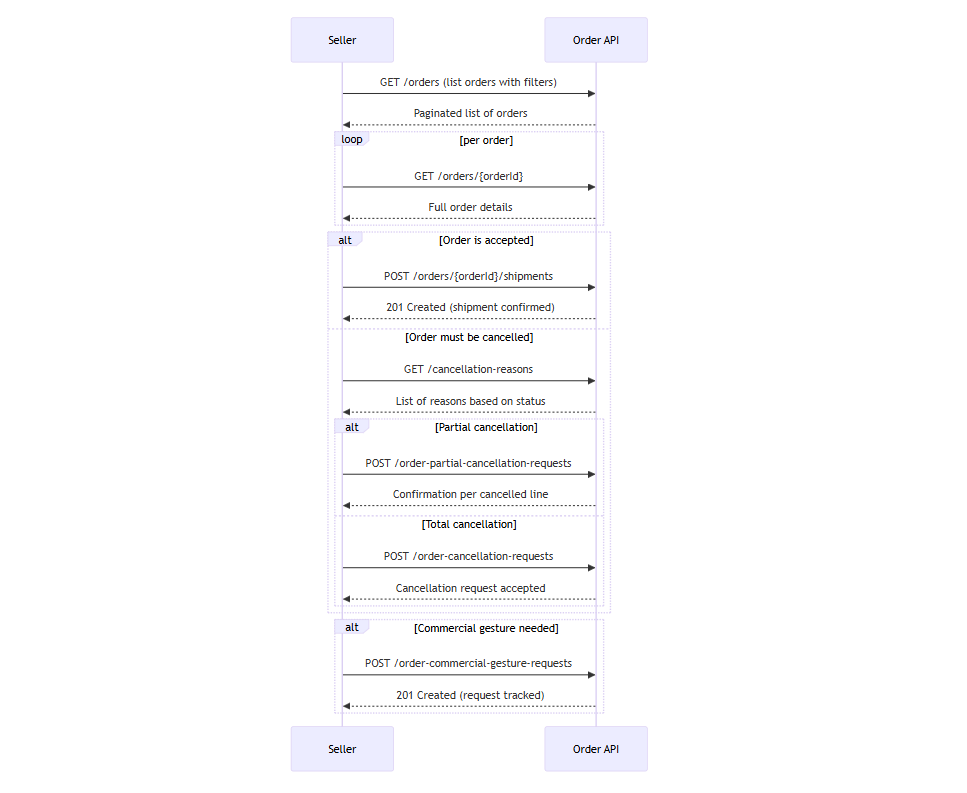
In this section we will look at how to manage the following cases and ensure maximum control of your orders:
Count orders using filters
Prerequisites
-
Understand how filters like
status,supplyMode,salesChannelId,createdAtMinorupdatedAtMinwork.
Allow sellers to estimate the number of orders matching given criteria — without retrieving any order details.
It is particularly useful if you want to:
-
Get a global indicator of order volume based on a status (e.g., “How many
InPreparationorders today?”), -
Generate statistics without retrieving full order details,
-
Optimize your API calls by reducing the volume of transferred data.
Endpoint to use
Retrieve the total count of all orders matching the request parameters
Functional Rules:
-
You can query on multiple sales channel using comma separated values
-
Filters are restrictive, if you don't provide a filter then no filtering is applied on this field
Example:
-
Retrieve the count of orders
InPreparationfor the sales channelSELLZZ:/orders/count?salesChannelId=SELLZZ&status=InPreparation -
Retrieve the count of orders
ShippedorDeliveredsince the first of march 2023 for the sales channelSELLZZ:/orders/count?salesChannelId=SELLZZ&status=Shipped,Delivered&updatedAtMin=2023-03-01T00:00:00.000Z
Endpoint full URL: https://api.octopia-io.net/seller/v2/orders/count
Parameters - Headers
| Name | In | Type | Description |
|---|---|---|---|
| SellerId* | header |
string
|
Octopia Seller Identifier. Example : 98979 |
Parameters - Query
| Name | In | Type | Description |
|---|---|---|---|
| reference | query |
string
|
Seller reference for the ressource. Example : 0223258 |
| salesChannelId | query |
string|null
|
The Identifier of the sales channel Example : SELLZZ |
| businessOrder | query |
boolean
|
Gets whether order is for business |
| status | query |
string|enum|null
|
The status of the ressource. Example : InPreparation Available values : ["Processing", "WaitingAcceptance", "Accepted", "Refused", "InPreparation", "Shipped", "Delivered", "Cancelled", "Rejected"] |
| supplyMode | query |
string|enum
|
The identifies the logistic process used to ship the order item.
Example : Seller Available values : ["Seller", "Fulfillment", "Xdock"] |
| shippingCountry | query |
string
|
The shipping country code. Example : FR |
| updatedAtMin | query |
string
|
The updated at minimum date of orders. Example : 2023-12-25T14:30:00Z |
| updatedAtMax | query |
string
|
The updated at maximum date of orders. Example : 2023-12-25T15:30:00Z |
| createdAtMin | query |
string
|
The created at minimum date of the ressource. Example : 2023-12-25T14:30:00Z |
| createdAtMax | query |
string
|
The created at maximum date of the ressource. Example : 2023-12-25T15:30:00Z |
| shippedAtMin | query |
string
|
The shipped at minimum date of orders. Example : 2023-12-25T14:30:00Z |
| shippedAtMax | query |
string
|
The shipped at maximum date of orders. Example : 2023-12-25T15:30:00Z |
Response codes
200 - Successful response with the count of orders matching the criteriaapplication/json |
||||||||||||||||
400 - Bad Requestapplication/problem+json |
||||||||||||||||
401 - Unauthorizedapplication/problem+json |
||||||||||||||||
403 - Forbiddenapplication/problem+json |
||||||||||||||||
500 - An internal server error occurredapplication/problem+json |
Important notes :
-
Filters are optional but highly recommended to avoid counting your entire historical data set.
-
Other features also have a route count. However, not all of them return an integer. You need to manage these specifiers on a case-by-case basis.
Retrieve orders using filters
Prerequisites
-
Understand Octopia’s order lifecycle and supply modes.
-
Know how to use time-based filters (created/updated).
-
Be familiar with pagination and sorting parameters.
Allow sellers to retrieve a list of orders by applying filters such as supply modes, order status, dates, sales channel, or business logic (B2B)…
It is designed to give sellers full visibility over their orders and enables them to:
-
List all orders matching specific statuses, dates, supply modes, or shipment statuses,
-
Retrieve critical information needed for order preparation, shipping, or customer support,
-
Manage operations efficiently by accessing real-time order details.
This endpoint supports advanced filtering and pagination to optimize data retrieval.
Endpoint to use
Use this method to retrieve a list of orders using a set of filters.
Functional Rules:
-
You may filter your search by adding the following criteria in your request body:
-
A list of order
status -
An order reference
-
Is a business order
-
A shipping country
-
A supply mode
-
A sales channel identifier
-
A time range on order creation using
createdAtMin/createdAtMax -
A time range on order update using
updatedAtMin/updatedAtMax -
A time range on order shipping using
shippedAtMin/shippedAtMax
-
-
You may also sort your search by date using the following fields:
-
createdAt -
updatedAt -
shippedAtMax
-
-
To ensure a faster answer, the number of items retrieved per page is limited to 100 items maximum.
-
For orders with supply mode =
Fulfillment, the shipping address of an order line is only available once the order has reached one of the following statuses:Shipped,Delivered,CancelledorCancelRequest(i.e., after it has been shipped by our Fulfillment service). -
For orders having supply mode =
Seller, the shipping address of an order line is only available once the line has reached one of the following statuses:InPreparation,Shipped,Delivered,CancelledorCancelRequest.
Examples:
-
Retrieve orders without filters:
/orders?pageIndex=1&pageSize=100 -
Retrieve orders sorted by
createdAtby ascending order:/orders?pageIndex=1&pageSize=100&sort=createdAt -
Retrieve orders sorted by
createdAtby ascending order,updatedAtby descending order and filtered using a list of status:/orders?pageIndex=1&pageSize=100&sort=createdAt&desc=updatedAt&status=Accepted,Shipped
Endpoint full URL: https://api.octopia-io.net/seller/v2/orders
Parameters - Headers
| Name | In | Type | Description |
|---|---|---|---|
| SellerId* | header |
string
|
Octopia Seller Identifier. Example : 98979 |
Parameters - Query
| Name | In | Type | Description |
|---|---|---|---|
| reference | query |
string
|
Seller reference for the ressource. Example : 0223258 |
| salesChannelId | query |
string|null
|
The Identifier of the sales channel Example : SELLZZ |
| businessOrder | query |
boolean
|
Gets whether order is for business |
| status | query |
string|enum|null
|
The status of the ressource. Example : InPreparation Available values : ["Processing", "WaitingAcceptance", "Accepted", "Refused", "InPreparation", "Shipped", "Delivered", "Cancelled", "Rejected"] |
| supplyMode | query |
string|enum
|
The identifies the logistic process used to ship the order item.
Example : Seller Available values : ["Seller", "Fulfillment", "Xdock"] |
| shippingCountry | query |
string
|
The shipping country code. Example : FR |
| updatedAtMin | query |
string
|
The updated at minimum date of orders. Example : 2023-12-25T14:30:00Z |
| updatedAtMax | query |
string
|
The updated at maximum date of orders. Example : 2023-12-25T15:30:00Z |
| createdAtMin | query |
string
|
The created at minimum date of the ressource. Example : 2023-12-25T14:30:00Z |
| createdAtMax | query |
string
|
The created at maximum date of the ressource. Example : 2023-12-25T15:30:00Z |
| shippedAtMin | query |
string
|
The shipped at minimum date of orders. Example : 2023-12-25T14:30:00Z |
| shippedAtMax | query |
string
|
The shipped at maximum date of orders. Example : 2023-12-25T15:30:00Z |
| pageIndex | query |
integer
|
The index of the current page of items Default : 1 Example : 1 |
| pageSize | query |
integer
|
Maximum number of items to return per page. Default : 50 Example : 50 |
| sort | query |
string
|
Ascending sort Example : asc:createdAt |
| desc | query |
string
|
Descending sort Example : desc:createdAt |
Response codes
200 - Successapplication/json
|
||||||||||||||||||||||||||||||||||||||||||||||||||||||||||||||||||||||||||||||||||||||||||||||||||||||||||||||||||||||||||||||||||||||||||||||||||||||||||||||||||||||||||||||||||||||||||||||||||||||||||||||||||||||||||||||||||||||||||||||||||||||||||||||||||||||||||||||||||||||||||||||||||||||||||||||||||||||||||||||||||||||||||
400 - Bad Requestapplication/problem+json |
||||||||||||||||||||||||||||||||||||||||||||||||||||||||||||||||||||||||||||||||||||||||||||||||||||||||||||||||||||||||||||||||||||||||||||||||||||||||||||||||||||||||||||||||||||||||||||||||||||||||||||||||||||||||||||||||||||||||||||||||||||||||||||||||||||||||||||||||||||||||||||||||||||||||||||||||||||||||||||||||||||||||||
401 - Unauthorizedapplication/problem+json |
||||||||||||||||||||||||||||||||||||||||||||||||||||||||||||||||||||||||||||||||||||||||||||||||||||||||||||||||||||||||||||||||||||||||||||||||||||||||||||||||||||||||||||||||||||||||||||||||||||||||||||||||||||||||||||||||||||||||||||||||||||||||||||||||||||||||||||||||||||||||||||||||||||||||||||||||||||||||||||||||||||||||||
403 - Forbiddenapplication/problem+json |
||||||||||||||||||||||||||||||||||||||||||||||||||||||||||||||||||||||||||||||||||||||||||||||||||||||||||||||||||||||||||||||||||||||||||||||||||||||||||||||||||||||||||||||||||||||||||||||||||||||||||||||||||||||||||||||||||||||||||||||||||||||||||||||||||||||||||||||||||||||||||||||||||||||||||||||||||||||||||||||||||||||||||
500 - An internal server error occurredapplication/problem+json |
Important notes :
-
Shipping addresses for Fulfillment orders are hidden until shipment.
-
Without any date filters, only latest orders will be returned. Always include at least one time filter (
updatedAtMinorcreatedAtMin) in automated processes. -
Maximum pageSize is 100. Results are paginated — check Link headers.
Retrieve an order by its ID
Prerequisites
-
Know the
orderIdfrom a prior call (e.g.GET /orders).
Allow the seller to retrieve a specific order in detail, for inspection, UI display, or issue handling.
It includes all the same data as /orders, and is typically used for:
-
Order detail pages in a seller back-office
-
Issue resolution (support, refund, cancellation)
-
Tracking / delivery follow-up
Endpoint to use
Use this method to get a specific order details, using the orderId as parameter.
Functional Rules:
-
For orders with supply mode =
Fulfillment, the shipping address of an order line is only available once the order has reached one of the following statuses:Shipped,Delivered,CancelledorCancelRequest(i.e., after it has been shipped by our Fulfillment service). -
For orders having supply mode =
Seller, the shipping address of an order line is only available once the line has reached one of the following statuses:InPreparation,Shipped,Delivered,CancelledorCancelRequest.
Example:
-
Get the order with id
SCID123456789:/orders/SCID123456789
Endpoint full URL: https://api.octopia-io.net/seller/v2/orders/{orderId}
Parameters - Headers
| Name | In | Type | Description |
|---|---|---|---|
| SellerId* | header |
string
|
Octopia Seller Identifier. Example : 98979 |
Parameters - Path
| Name | In | Type | Description |
|---|---|---|---|
| orderId* | path |
string
|
The order unique identifier in Octopia's system. Example : SCID123456789 |
Response codes
200 - Successful response with a single order detailsapplication/json |
||||||||||||||||||||||||||||||||||||||||||||||||||||||||||||||||||||||||||||||||||||||||||||||||||||||||||||||||||||||||||||||||||||||||||||||||||||||||||||||||||||||||||||||||||||||||||||||||||||||||||||||||||||||||||||||||||||||||||||||||||||||||||||||||||||||||||||||||||||||||||||||||||||||||||||||||||||||||||
401 - Unauthorizedapplication/problem+json |
||||||||||||||||||||||||||||||||||||||||||||||||||||||||||||||||||||||||||||||||||||||||||||||||||||||||||||||||||||||||||||||||||||||||||||||||||||||||||||||||||||||||||||||||||||||||||||||||||||||||||||||||||||||||||||||||||||||||||||||||||||||||||||||||||||||||||||||||||||||||||||||||||||||||||||||||||||||||||
403 - Forbiddenapplication/problem+json |
||||||||||||||||||||||||||||||||||||||||||||||||||||||||||||||||||||||||||||||||||||||||||||||||||||||||||||||||||||||||||||||||||||||||||||||||||||||||||||||||||||||||||||||||||||||||||||||||||||||||||||||||||||||||||||||||||||||||||||||||||||||||||||||||||||||||||||||||||||||||||||||||||||||||||||||||||||||||||
404 - Not foundapplication/problem+json |
||||||||||||||||||||||||||||||||||||||||||||||||||||||||||||||||||||||||||||||||||||||||||||||||||||||||||||||||||||||||||||||||||||||||||||||||||||||||||||||||||||||||||||||||||||||||||||||||||||||||||||||||||||||||||||||||||||||||||||||||||||||||||||||||||||||||||||||||||||||||||||||||||||||||||||||||||||||||||
500 - An internal server error occurredapplication/problem+json |
Important notes
-
Information available through this endpoint is intended only for shipping and end-customer billing.
-
Fulfillment orders will only expose the shipping address after shipment.
-
Selling Price Vs Offer Price :
offerPriceis the price defined by the seller for the offer, whilesellingPriceis the final price paid by the customer after applying any discounts or promotions.
Approve an order
Prerequisites
-
This functionality applies only to the Cdiscount sales channel.
-
Orders must be in status
WaitingAcceptanceto be approved. -
Approval must be done before a deadline, after which the order may auto-expire.
-
Automatic order approval can be enabled from the Octopia Seller Portal (OSP).
Allow Cdiscount sellers to manually accept an order, confirming they are ready to fulfill it.
This ensures the seller has reviewed stock availability, pricing, and fulfillment capacity before proceeding.
Cdiscount orders are initially created with the status WaitingAcceptance.
To confirm the seller’s intent to process the order, they must either:
-
Accept the order manually via API or Portal
-
Or enable automatic approval via the Octopia Seller Portal (OSP) settings
Once the order is approved:
-
Its status transitions to
Acceptedfor final control -
Then it reaches
InPreparationand becomes eligible for shipment declaration (/shipments) -
The cancellation process changes (some cancellation reasons become restricted)
Endpoint to use
Use this method to validate a specific order.
Endpoint full URL: https://api.octopia-io.net/seller/v2/orders/{orderId}/approval-status
Parameters - Headers
| Name | In | Type | Description |
|---|---|---|---|
| SellerId* | header |
string
|
Octopia Seller Identifier. Example : 98979 |
Parameters - Path
| Name | In | Type | Description |
|---|---|---|---|
| orderId* | path |
string
|
The order unique identifier in Octopia's system. Example : SELLZZ210525142759UT8E |
Request body
|
List of validation request for the given order. A request may contain several lines validation of the order. application/json |
Response codes
201 - Created. |
||||||||||||||||
400 - Bad Requestapplication/problem+json |
||||||||||||||||
401 - Unauthorizedapplication/problem+json |
||||||||||||||||
403 - Forbiddenapplication/problem+json |
||||||||||||||||
404 - Not Foundapplication/problem+json |
||||||||||||||||
409 - Conflictapplication/problem+json |
||||||||||||||||
500 - Internal Server Errorapplication/problem+json |
Ship an order
Prerequisites
-
The order must be in
InPreparationstatus and at least one line must be inInPreparationorCancelRequeststatus-
⚠️ Shipping an order line with
CancelRequeststatus assumes the seller rejected the customer withdrawal request on the order line.
-
-
The order’s
supplyModemust beSeller(notFulfillment). -
You must have the order ID and associated line IDs to ship.
-
Carriers and parcel numbers must be provided.
Allow the seller to confirm that products have been shipped, by declaring carrier name and parcel number.
You must call this API before parcel collection by your carrier.
This is a critical step in the order lifecycle to trigger downstream processes such as customer notification, invoicing, and commission calculation.
Each shipment can contain:
-
One or multiple parcels
-
One or multiple order lines per parcel
-
Tracking URL (optional but recommended)
Once declared:
-
The order status moves to
Shipped(or remainsInPreparationfor partial shipments)
Endpoint to use
Use this method to ship a specific order, or order lines.
Functional Rules:
- Please note that this endpoint should only be called for orders or order lines with the
InPreparationstatus and a supplyMode equal toSeller
Example:
-
To create a new shipment for the order with id
SCID123456789:/orders/SCID123456789/shipments
Endpoint full URL: https://api.octopia-io.net/seller/v2/orders/{orderId}/shipments
Parameters - Headers
| Name | In | Type | Description |
|---|---|---|---|
| SellerId* | header |
string
|
Octopia Seller Identifier. Example : 98979 |
Parameters - Path
| Name | In | Type | Description |
|---|---|---|---|
| orderId* | path |
string
|
The order unique identifier in Octopia's system. Example : SCID123456789 |
Request body
|
List of parcels for the given order. A parcel may contain several products of the order (e.g. small products shipped in one parcel), or a product may be shipped in several parcels (e.g. large products). application/json |
Response codes
201 - Successful response after creating a shipment for an order |
||||||||||||||||
400 - Bad Requestapplication/problem+json |
||||||||||||||||
401 - Unauthorizedapplication/problem+json |
||||||||||||||||
403 - Forbiddenapplication/problem+json |
||||||||||||||||
404 - Not foundapplication/problem+json |
||||||||||||||||
409 - Conflictapplication/problem+json |
||||||||||||||||
500 - An internal server error occurredapplication/problem+json |
Important:
-
Not all sales channels allow partial shipment.
-
Cdicount only enables one parcel per complete order.
-
Trying to ship an order that is already cancelled or in an invalid status will be rejected.
-
For Fulfillment supply modes, you do not call this endpoint — the warehouse does it.
-
Orders in Refused, Cancelled, Shipped or Delivered status cannot be shipped.
Examples of shipment payloads
Full shipment (all order lines shipped in one parcel)
[
  {
    "parcelNumber": "PARCEL-001",
    "carrierName": "Chronopost",
    "trackingUrl": "https://track.example.com/PARCEL-001",
    "orderLineIds": [
      "LINE1",
      "LINE2",
      "LINE3"
    ]
  }
]
Partial shipment (some order lines only)
[
  {
    "parcelNumber": "PARCEL-002",
    "carrierName": "Colissimo",
    "trackingUrl": "https://track.example.com/PARCEL-002",
    "orderLineIds": [
      "LINE1"
    ]
  }
]
Multiple parcels for a single order line
You can associate the same orderLineId to multiple parcels, if the item is shipped in parts or through different transporters:
[
  {
    "carrierName": "LaPoste",
    "orderLineIds": [
      "AYGC",
      "BFCD"
    ],
    "parcelNumber": "PARCEL1",
    "trackingUrl": "http://tracking.example.com/PARCEL1"
  },
  {
    "carrierName": "DPD",
    "orderLineIds": [
      "BFCD"
    ],
    "parcelNumber": "PARCEL2",
    "trackingUrl": "http://tracking.example.com/PARCEL2"
  },
  {
    "carrierName": "Chronopost",
    "orderLineIds": [
      "BFCD"
    ],
    "parcelNumber": "PARCEL3",
    "trackingUrl": "http://tracking.example.com/PARCEL3"
  }
]
In this example:
-
Line
AYGCis shipped with 1 parcel (PARCEL1) -
Line
BFCDis shipped with 3 parcels:PARCEL1,PARCEL2, andPARCEL3
Each with its own carrier and tracking URL.
This is useful for oversized products, separate warehouse routing, or multi-part packaging.
Important notes :
-
Multiple parcels for a single order line is not available on Cdiscount marketplace
Sub-case — know the carrier available
Allow the seller to retrieve the list of shipping carriers available for parcel declarations.
Calling GET /carriers provides:
-
The list of known
carrierNamevalues (seelabelproperty)
This helps ensure:
-
Parcel declarations use normalized and valid carrier names
-
Buyers receive proper tracking experience (e.g., via known tracking URLs)
Endpoint to use
List of supported carriers with high Tracking retrieval performance.
The list provides the associated mandatory carrierCode requested for tracking POST
Example:
-
Retrieve all carries:
/carriers
Endpoint full URL: https://api.octopia-io.net/seller/v2/carriers
Parameters - Headers
| Name | In | Type | Description |
|---|---|---|---|
| SellerId* | header |
string
|
Octopia Seller Identifier. Example : 98979 |
Response codes
200 - List of supported carriers.application/json |
||||||||||||||||||||||||
400 - Bad Requestapplication/problem+json |
||||||||||||||||||||||||
401 - Unauthorizedapplication/problem+json |
||||||||||||||||||||||||
403 - Forbiddenapplication/problem+json |
||||||||||||||||||||||||
404 - Not Foundapplication/problem+json |
||||||||||||||||||||||||
500 - Internal Server Errorapplication/problem+json |
Important notes
-
The
carrierNamefield is free-form, but we recommend using a value from the bounded list to ensure reliability. -
Not all carriers are compatible with all delivery modes
-
If the carrier is not provided, the shipment may be considered invalid
Cancel an Order
Allow the seller to cancel one or multiple lines from an order, or the entire order if necessary.
Cancellation may be needed for out-of-stock situations, customer requests, pricing errors, etc.
The commercial gesture system works in three steps:
-
Retrieve the list of cancellation reasons applicable to the order
-
Submit a cancellation request:
-
Either for the full order
-
Or only for specific lines (partial)
-
-
Retrieve cancellation requests to track their processing
Sub-case 1 – Retrieve cancellation reasons
To retrieve the list of cancellation reasons accepted for a given context (seller, customer, sales channel).
Cancellation reasons depend on:
-
The type of requester (
Seller,Customer, etc.) -
The sales channel configuration (Not all sales channels allow partial cancellation)
-
The order or line status (
Accepted,Shipped,Delivered, etc.)
This endpoint ensures you only use valid and applicable reasons in subsequent cancellation requests.
Endpoint to use
Allows to filter the list of reasons to only include those applicable for the given order status.
Functional Rules:
- The cancellation reasons returned depend on the order status provided in parameter.
Example:
-
Retrieve cancellation reasons for shipped orders with sales channel ID
SELLZZ, user typeSellerand order statusShipped:/cancellation-reasons?salesChannel=SELLZZ&userType=Seller&orderStatus=Shipped
Endpoint full URL: https://api.octopia-io.net/seller/v2/cancellation-reasons
Parameters - Headers
| Name | In | Type | Description |
|---|---|---|---|
| SellerId* | header |
string
|
Octopia Seller Identifier. Example : 98979 |
Parameters - Query
| Name | In | Type | Description |
|---|---|---|---|
| salesChannel | query |
string|null
|
The Identifier of the sales channel Example : SALESC |
| userType | query |
string|enum|null
|
The type of user Example : Seller Available values : ["Customer", "Seller", "SalesChannel", "CustomerCareService"] |
| orderStatus | query |
string|enum
|
Allows to filter the list of reason to only include those applicable for the given order status. Example : Accepted Available values : ["Accepted", "InPreparation", "Shipped", "Delivered"] |
Response codes
200 - Successful response with the list of cancellation reasonsapplication/json |
||||||||||||||||
400 - Bad Requestapplication/problem+json |
||||||||||||||||
401 - Unauthorizedapplication/problem+json |
||||||||||||||||
403 - Forbiddenapplication/problem+json |
||||||||||||||||
500 - Server Errorapplication/problem+json |
Important notes
-
Using an invalid reason in a cancellation request will result in a 400 or 409 error
-
The list may vary by sales channel and order status — always retrieve it dynamically
-
Not all sales channels allow partial cancellation
Sub-case 2.a – Submit a full cancellation request
Prerequisites
-
You must have retrieved a valid cancellation reason code first
To cancel the entire order in one request, including all lines.
This endpoint:
-
Registers a total cancellation request for the full order
-
Allows you to choose whether to refund shipping costs (
shippingCostRefund) -
Applies a single reason code to the entire cancellation
Endpoint to use
This API is used to send a full cancellation request:
Functional Rules:
-
You can call
Get /cancellation-reasonsendpoint before calling this method to get eligible reasons for cancellation based on the order status. -
You can choose to refund the shipping costs or not.
-
You cannot create a full cancellation request on an order with one or more lines already cancelled.
-
Note that the cancellation reasons that can be used "depends" on the order status
-
In case of an order with a Fulfillment line(s), cancellation is only possible if the line(s) status is/are either
ShippedorDelivered, otherwise the cancellation will be rejected -
Once the cancellation request is accepted, the status of the order changes to
Cancelledand the seller's refund is triggered.
Example:
-
To create a new order cancellation request:
/order-cancellation-requests
Endpoint full URL: https://api.octopia-io.net/seller/v2/order-cancellation-requests
Parameters - Headers
| Name | In | Type | Description |
|---|---|---|---|
| SellerId* | header |
string
|
Octopia Seller Identifier. Example : 98979 |
Request body
|
The order and reason for cancellation application/json |
Response codes
201 - Successful response after creating a total cancellation requestapplication/jsonLinks:
|
||||||||||||||||
400 - Bad Requestapplication/problem+json |
||||||||||||||||
401 - Unauthorizedapplication/problem+json |
||||||||||||||||
403 - Forbiddenapplication/problem+json |
||||||||||||||||
409 - Conflictapplication/problem+json |
||||||||||||||||
500 - Server Errorapplication/problem+json |
Example:
{
  "orderSellerId": "SCID01210525142759UT8E",
  "reason": "seller-refusal",
  "shippingCostRefund": true
}
Important notes
-
You cannot use this if any line has already been partially cancelled
-
For Fulfillment orders, cancellation is only allowed if lines are
ShippedorDelivered -
⚠️ Cancellation requests can only be **accepted or refused via the OSP (Octopia Seller Portal)**. It is not possible to directly cancel an order line via the API when it has the `cancelRequest` status.
Sub-case 2.b – Submit a partial cancellation request
Prerequisites
-
You must identify each line to cancel (
lineId,offerId) -
Each line needs an individual reason
To cancel only some lines from a given order.
This endpoint:
-
Accepts a list of lines to cancel
-
Applies line-level cancellation reasons
-
Allows per-line control over shipping refund
Endpoint to use
This API is used to request a partial cancellation.
Functional Rules:
-
Before calling this API you must retrieve the cancellation reason from the
Get /cancellation-reasons -
Note that the cancellation reason that can be used depends on the order line status
-
In case of an order with a Fulfillment line(s), cancellation is only possible if the line(s) status is/are either
ShippedorDelivered, otherwise the cancellation will be rejected -
If you do not want to request the refund of shipping costs, you must express your choice in the property
shippingCostRefund, and usefalseas value.
Example:
-
To create a new order partial cancellation request:
/order-partial-cancellation-requests
Endpoint full URL: https://api.octopia-io.net/seller/v2/order-partial-cancellation-requests
Parameters - Headers
| Name | In | Type | Description |
|---|---|---|---|
| SellerId* | header |
string
|
Octopia Seller Identifier. Example : 98979 |
Request body
|
The list of lines to cancel on the given order alongside their reasons application/json |
Response codes
201 - Successful response after creating a partial cancellation requestapplication/jsonLinks:
|
||||||||||||||||||
400 - Bad Requestapplication/problem+json |
||||||||||||||||||
401 - Unauthorizedapplication/problem+json |
||||||||||||||||||
403 - Forbiddenapplication/problem+json |
||||||||||||||||||
409 - Conflictapplication/problem+json |
||||||||||||||||||
500 - Server Errorapplication/problem+json |
Example
{
  "orderSellerId": "SCID01210525142759UT8E",
  "lines": [
    {
      "lineId": "AY01",
      "offerId": "OFFER123",
      "reason": "missing-product",
      "shippingCostRefund": true
    },
    {
      "lineId": "BY02",
      "offerId": "OFFER456",
      "reason": "reference-mistake",
      "shippingCostRefund": false
    }
  ]
}
Important notes
-
This does not cancel the whole order — only the specified lines
-
Re-submitting a cancellation for the same line will trigger a 409 Conflict
-
⚠️ Cancellation requests can only be **accepted or refused via the OSP (Octopia Seller Portal)**. It is not possible to directly cancel an order line via the API when it has the `cancelRequest` status.
Sub-case 3 – Retrieve cancellation requests
Prerequisites
-
At least one of these filters is required:
orderSellerId,cancellationRequestId
To retrieve all existing cancellation requests for a given order or line.
This endpoint helps:
-
Track partial and total cancellation status
-
Audit who triggered the cancellation (user type, ID)
-
Understand rejections or errors from previous requests
Endpoint to use
This API is used to retrieve total and partial cancellation requests.
Functional Rules:
-
At least one of the two parameters is mandatory:
-
OrderSellerId -
CancellationRequestId
-
-
By default the result list is sorted by descending order on
updatedAt.
Examples
Retrieve partial cancellation request for the order 547654:
/order-cancellation-requests?orderSellerId=547654
Retrieve the partial cancellation request for the offer 4596 in the order 547654:
/order-cancellation-requests?orderSellerId=547654&offerId=4596
Endpoint full URL: https://api.octopia-io.net/seller/v2/order-cancellation-requests
Parameters - Headers
| Name | In | Type | Description |
|---|---|---|---|
| SellerId* | header |
string
|
Octopia Seller Identifier. Example : 98979 |
Parameters - Query
| Name | In | Type | Description |
|---|---|---|---|
| orderSellerId | query |
string
|
Order seller identifier. Example : 23110913520O9RW9 |
| cancellationRequestId | query |
string
|
The order cancellation request Id Example : 3 |
| lineId | query |
string
|
The order line Id Example : AY01 |
| offerId | query |
string
|
The order offer Id Example : 5645851 |
| salesChannel | query |
string|null
|
The Identifier of the sales channel Example : SALESC |
| pageIndex | query |
integer
|
The index of the current page of items Default : 1 Example : 1 |
| pageSize | query |
integer
|
Maximum number of items to return per page. Default : 50 Example : 50 |
Response codes
200 - Successful response with cancellation requests detailsapplication/json |
||||||||||||||||||||||||||||||||||||||||||||||||||
400 - Bad Requestapplication/problem+json |
||||||||||||||||||||||||||||||||||||||||||||||||||
401 - Unauthorizedapplication/problem+json |
||||||||||||||||||||||||||||||||||||||||||||||||||
403 - Forbiddenapplication/problem+json |
||||||||||||||||||||||||||||||||||||||||||||||||||
500 - Server Errorapplication/problem+json |
Make a commercial gesture
Prerequisites
-
The sales channel must allow commercial gestures for the seller (depends on Saleschannel configuration).
-
The order must be in a post-shipment status (
ShippedorDelivered). -
You must retrieve the gesture configuration before creating a gesture.
Allow a seller to submit, track and validate commercial gesture requests on a given order, such as:
-
Refund for missing item
-
Compensation for delay
-
Refund of shipping or return fees
Gestures are useful for customer satisfaction, quality control follow-up, or loyalty strategies.
The commercial gesture system works in three steps:
-
Check the sales channel configuration to validate if gestures are allowed and within limits
-
Submit a gesture request with amount, reason, and optional comment
-
Track or retrieve previous gesture requests for follow-up or support purposes
Important notes
-
All gesture requests are asynchronous: they are validated later based on internal rules (order status, amount, etc.).
Sub-case 1 – Check the sales channel configuration
To check if a sales channel allows commercial gestures, and retrieve:
-
Maximum allowed rate (%) over the order amount
-
Maximum allowed fixed amount
-
Authorized currency
Use this endpoint before submitting a gesture to avoid rejection due to exceeding:
-
Global max gesture budget
-
Currency mismatches
-
Disabled feature at channel level
Endpoint to use
This API allows you to retrieve the maximum allowable commercial gesture amount for a given order. It provides both the maximum amount that can be applied as a commercial gesture and the amounts of any previous commercial gestures applied to the order.
Functional Rules:
-
The maximum allowable commercial gesture is calculated by subtracting the previously granted commercial gestures from the maximum commercial gesture amount as well as any cancelled line of the order.
Example:
Max commercial gesture = €40 (Refer to Post /order-commercial-gesture-requests for details on calculating this amount). Sum of previous commercial gestures = €17. Max allowable commercial gesture = €40€ - €17 = €23`
-
In case of a Cdiscount order the maximum allowable commercial gesture amount will include refunds, and may not match with the commercial gestures sum.
Example:
-
To get the maximum allowable commercial gesture amount for the order with
orderIdSCID123456789:/orders/SCID123456789/commercial-gestures-available-amounts
Endpoint full URL: https://api.octopia-io.net/seller/v2/orders/{orderId}/commercial-gestures-available-amounts
Parameters - Headers
| Name | In | Type | Description |
|---|---|---|---|
| SellerId* | header |
string
|
Octopia Seller Identifier. Example : 98979 |
Parameters - Path
| Name | In | Type | Description |
|---|---|---|---|
| orderId* | path |
string
|
The order unique identifier in Octopia's system. Example : SCID123456789 |
Response codes
200 - Successapplication/json |
||||||||||||||||
400 - The order does not existsapplication/problem+json |
||||||||||||||||
401 - Unauthorizedapplication/problem+json |
||||||||||||||||
403 - Forbiddenapplication/problem+json |
||||||||||||||||
500 - Internal server errorapplication/problem+json |
Important notes
-
Gesture limits are applied on order amount after cancelled lines are excluded
-
Currency must match the sales channel
-
Some channels explicitly forbid gestures (you’ll get
allowsGesture: false)
Sub-case 2 – Submit a gesture request
Prerequisites
-
You must know the gesture limits (via previous endpoint)
-
Order must be in
ShippedorDeliveredstatus -
Amount must be below channel limit
-
A valid reason code must be used
To create a new commercial gesture request for a given order, including:
-
Reason (
MissingProduct,ShippingFees, etc.) -
Amount
-
Optional
reasonDetailsif reason isOther
When calling this endpoint, the system:
-
Validates input (status, reason, limits)
-
Queues the gesture for back-office review
-
Assigns a unique request ID and response status (
InProgress,Rejected,Done)
You can track the request later via the listing endpoint.
Endpoint to use
This API is used to create an order commercial gesture.
The processing of commercial gestures is asynchronous.
Requests will be created, and if any of the functional rules are not met, they will be rejected.
Use /order-commercial-gesture-requests to check the status of the request
Functional Rules:
-
You can request a commercial gesture on a post-shipment order (
Shipped,Delivered) -
You can request multiple order commercial gesture with the same or different
reason -
If the
reasonproperty is set toOther, thereasonDetailsproperty becomes mandatory and must be provided to describe why this commercial gesture is being submitted. -
You can request a commercial gesture for orders that the sales channel has chosen to enable this option, use
/sales-channel-commercial-gesture-configurations/{salesChannelId}to check if this option is enabled. -
The maximum total amount of commercial gestures on an order depends on the sales channel configuration, use
/sales-channel-commercial-gesture-configurations/{salesChannelId}to check the available maximum gesture amount. -
The sales channel can choose a maximum rate and a maximum amount over the price of the order. The commercial gesture limit is the maximum amount between the specified fixed amount added to the order amount and the specified rate of the order amount.
Example:
Sales channel configuration: maximumAmount = €20, maximumRate = 120% Order amount (selling price shipping fees included) = €18. Max commercial gesture = Max ((18 + 20), (18 * 120% )) = Max (38, 21.6) = €38`
- The maximum total amount of commercial gestures does take into consideration the status of the order. If an order line is
Cancelled, its price is not taken into account in the calculation of the order amount.
Example:
Order line 1 amount = €10 and Order line 2 (Cancelled) amount = €10. Order amount = €10 (line 1) + €0 (line 2) = €10`
- In case of a Cdiscount order the maximum allowable commercial gesture amount will include refunds, and may not match with the commercial gestures sum.
- The commercial gesture currency matches that of the sales channel, use
/sales-channel-commercial-gesture-configurations/{salesChannelId}to check your sales channel currency. - Once the commercial gesture request is accepted, the amount of the commercial gesture will be deducted from your available balance
Endpoint full URL: https://api.octopia-io.net/seller/v2/order-commercial-gesture-requests
Parameters - Headers
| Name | In | Type | Description |
|---|---|---|---|
| SellerId* | header |
string
|
Octopia Seller Identifier. Example : 98979 |
Request body
|
The order and reason for commercial gesture application/json |
Response codes
201 - Successful response after creating a commercial gesture requestapplication/json |
||||||||||||||||||||||||||||||||||
400 - Bad Requestapplication/problem+json |
||||||||||||||||||||||||||||||||||
401 - Unauthorizedapplication/problem+json |
||||||||||||||||||||||||||||||||||
403 - Forbiddenapplication/problem+json |
||||||||||||||||||||||||||||||||||
500 - Server Errorapplication/problem+json |
Example
{
  "orderId": "SCID01210525142759UT8E",
  "reason": "MissingProduct",
  "reasonDetails": "Left earbud was not in the package",
  "amount": 9.99
}
Important notes
-
reasonDetailsis mandatory ifreasonis set toOther -
Order must be post-shipped (cannot create gestures on
AcceptedorInPreparation) -
The same gesture cannot be re-submitted if already processed (duplicate = rejected)
Sub-case 3 – retrieve previous gesture
Prerequisites
-
Provide either
orderId,status, or date filters to limit scope
To retrieve all existing gesture requests submitted for a given order or channel, with their status and audit data.
This endpoint returns:
-
All commercial gesture requests by the seller
-
Their
status(InProgress,Rejected,Done) -
Reasons, amounts, and possible rejection messages
-
Created / updated timestamps
Useful for:
-
Tracking open gestures
-
Auditing denied requests
-
Displaying gesture history in UIs
Endpoint to use
This API is used to retrieve commercial gesture requests.
Functional Rules:
-
The default sort is descending on
updatedAt. -
You can use the
cursorto navigate through the data.
Example:
-
To retrieve another page of commercial gesture requests for order
01210525142759UT8E:/order-commercial-gesture-requests?orderId=01210525142759UT8E&cursor=c29ydDpkZXNjJmluY2x1ZGVfaXRlbT10cnVlJmlkPTE2ODIwNzA2Mzk=
Endpoint full URL: https://api.octopia-io.net/seller/v2/order-commercial-gesture-requests
Parameters - Headers
| Name | In | Type | Description |
|---|---|---|---|
| SellerId* | header |
string
|
Octopia Seller Identifier. Example : 98979 |
Parameters - Query
| Name | In | Type | Description |
|---|---|---|---|
| limit | query |
integer
|
The amount of commercial gesture to retrieve. Default to 100. Default : 100 Example : 100 |
| cursor | query |
string
|
Pagination cursor. Use together with Example : eyJDdXJzb3JUeXBlIjoyLE9mZmVyVGVjaG5pY2FsSWQiOiIxMjM0NTZfQUFBQkI2MTEyM182X0NESVNGUiJ9 |
| orderId | query |
string
|
The order unique identifier in Octopia's system. Example : 54hgfioazlk1297867 |
| status | query |
string|enum
|
The commercial gesture status Example : InProgress Available values : ["InProgress", "Rejected", "Done"] |
| createdAtMin | query |
string
|
The created at minimum date of the ressource. Example : 2023-12-25T14:30:00Z |
| createdAtMax | query |
string
|
The created at maximum date of the ressource. Example : 2023-12-25T15:30:00Z |
| updatedAtMin | query |
string
|
The updated at minimum date of orders. Example : 2023-12-25T14:30:00Z |
| updatedAtMax | query |
string
|
The updated at maximum date of orders. Example : 2023-12-25T15:30:00Z |
Response codes
200 - Successful response with a list of commercial gesture requestsapplication/json
|
||||||||||||||||||||||||||||||||||||||||||||||||||
400 - Bad Requestapplication/problem+json |
||||||||||||||||||||||||||||||||||||||||||||||||||
401 - Unauthorizedapplication/problem+json |
||||||||||||||||||||||||||||||||||||||||||||||||||
403 - Forbiddenapplication/problem+json |
||||||||||||||||||||||||||||||||||||||||||||||||||
500 - Server Errorapplication/problem+json |
Important notes
-
The response is paginated — use cursors for navigation
-
If a request is
Rejected, details are provided undererrors[] -
Combine this endpoint with order info to show complete gesture history per order
FAQ
An order is created when a customer successfully places a purchase through a connected sales channel.
It becomes visible to the seller via the API once it passes internal eligibility checks (offer status, stock availability, etc.).
|
Status |
Meaning |
|---|---|
|
|
Awaiting manual validation by the seller. |
|
|
Order accepted and ready to be prepared. |
|
|
Order is being processed before shipping. |
|
|
Tracking info has been submitted. |
|
|
Optional — not used in all integrations. |
|
|
Cancelled by the customer, seller, or system. |
|
|
Order failed validation (e.g. out-of-stock). |
Each order line has a supplyMode:
-
Seller: you handle storage, preparation, shipping, returns. -
Fulfillment: Octopia Fulfillment handles operations.
Your actions depend on this mode: for example, you must provide tracking for Seller mode, but not for Fulfillment.
Look at the order’s status (Accepted or InPreparation) and the field shippedAtMax.
This is the latest shipping date you must respect to comply with SLA.
You risk:
-
Automatic cancellation.
-
SLA penalties affecting your seller score.
-
Temporary suspension if thresholds are repeatedly missed.
Use the /sellers/indicators endpoint to monitor your performance metrics.
If enabled for your channel:
-
Use the
/orders/invoicesAPI. -
Attach PDF or XML invoice using order reference.
It means the order failed validation (e.g. offer inactive, no stock).
You don’t need to take action — but you should:
-
Investigate your offer status.
-
Monitor your rejection rate.
Rejections do not count against SLA but may indicate catalog issues.
The order retrieval API only returns information relevant to order management, not billing.
Depending on your company’s country, the shipment departure country, and the target marketplace, you might responsible for calculating, collecting, and declaring VAT (which is therefore not covered by the marketplace).
Other conditions may apply according to Directive 2017/2455/EU of 5 December 2017, see related documentation here.
The amount of VAT, or rather its calculation, is then responsibility of the seller. The rate (in the API) is returned as declared when your offers are updated/created and depending on the product category, this leads to the return of an uncalculated value in the “amount” field.
Exact VAT amounts paid or collected are still retrievable at the accounting level in Financial operations API.
The offerId uniquely identifies the specific product listing (product + condition + sales channel) sold in the order.
In a partial cancellation, you’re cancelling a specific line within a multi-product order.
Even if the orderLineId is known, the offerId is used to:
-
Match the product to the seller catalog.
-
Validate that the seller is authorized to cancel that specific item.
-
Ensure consistency in refund, stock reallocation and SLA tracking.
If the order’s supplyMode is Seller, you (the seller) are fully responsible for handling the return flow, including:
-
Providing a return address to the customer.
-
Issuing refund or replacement.
-
Optionally generating a return label manually.
Octopia does not manage return logistics or tracking for non-FFM orders.
A valid tracking URL must:
-
Begin with
http://orhttps://. -
Be a complete, public link to the carrier’s tracking page.
-
Allow the customer (or Octopia) to click and follow the shipment without authentication.
-
Be correctly encoded (no spaces or illegal characters).
Valid examples:
https://www.laposte.fr/suivre-vos-envois?code=3Y00523771050
https://www.ups.com/track?tracknum=1Z12345E0205271688
Invalid examples:
-
https://carrier.com/track(missing tracking number) -
ftp://track.com/123(wrong protocol) -
https://tracking.local/internal/abc123(not publicly accessible)
You can validate the tracking URL format using the following regular expression:
^(http(s?)|HTTP(S?))\:\/\/[0-9a-zA-Z]([-.\w]*[0-9a-zA-Z])*(:(0-9)*)*(\/?)([a-zA-Z0-9\-\.\?\,\~\'\/\\\+&%\$#_=!]*)?$
Service fees (such as payment in instalments, marketplace services, compliance charges) are typically:
-
Charged to the customer as part of the order total.
-
Then deducted from the seller payout in the financial settlement.
The seller may see service fees reflected in:
-
The order object (
serviceFeeslist). -
The invoices and operations under the
FinanceAPI (e.g.,Operation.ServiceFinancialFlow,invoiceServiceFilePath).
To reconcile payments and service fees: use the /operations or /invoices endpoints.